 Skip to content
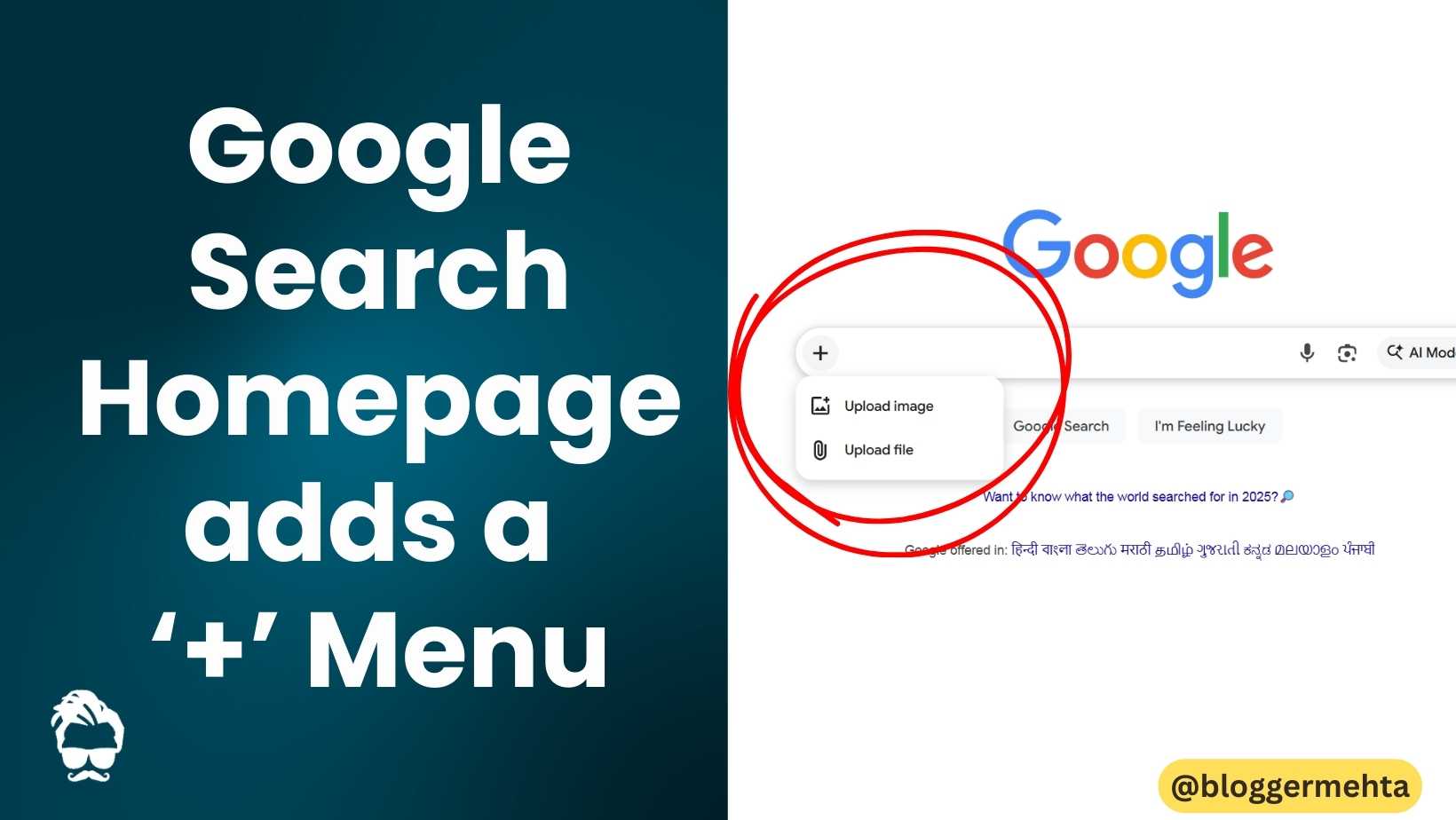
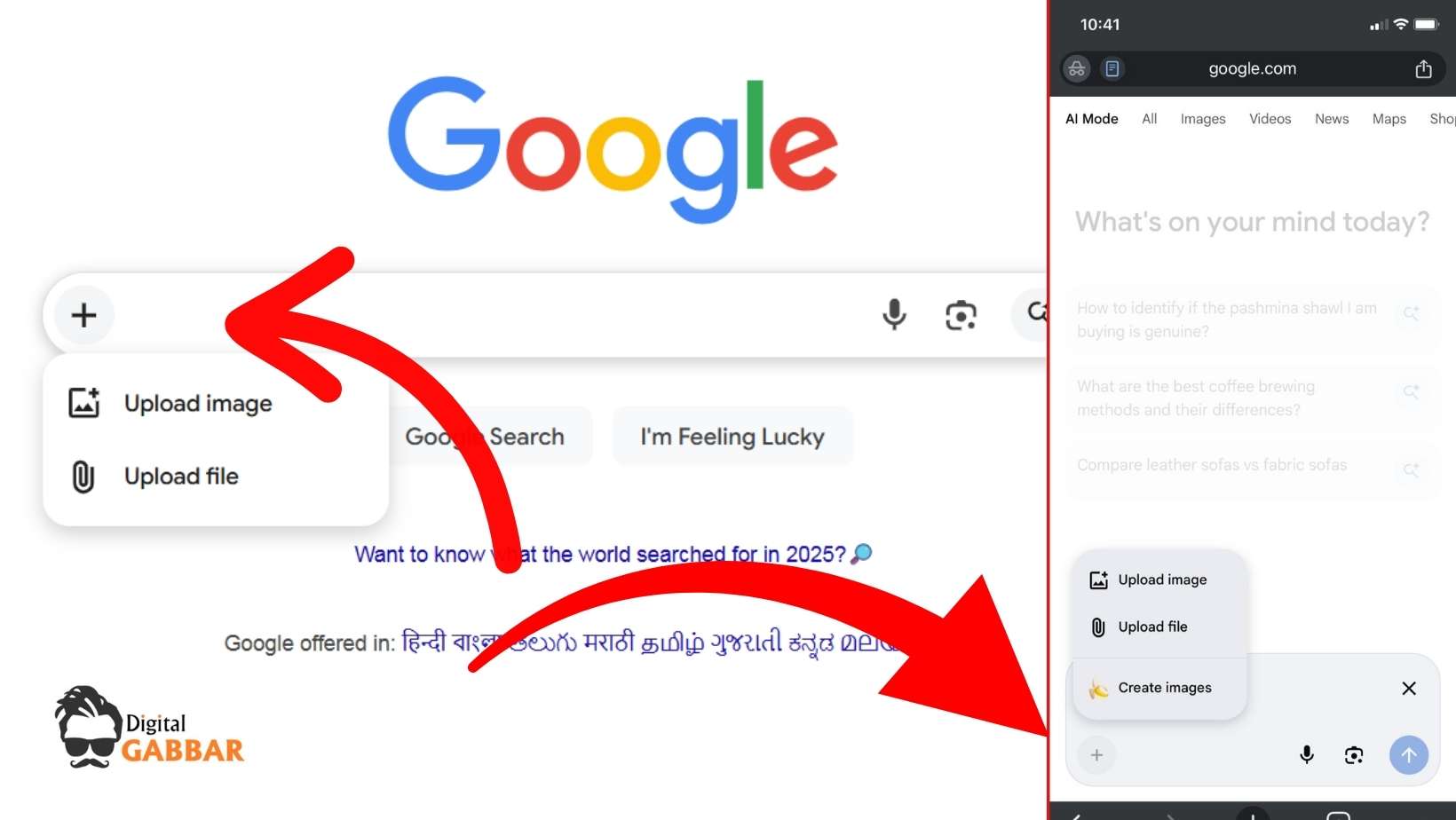
Google has replaced the little magnifying‑glass icon on the desktop search bar with a plus ( + ) button. Clicking it opens a tiny pop‑up that lets you upload an image or a file straight from the homepage. The UI mirrors the “AI Mode” experience that Google rolled out earlier this year, and the feature is live on the desktop web (including signed‑out and Incognito sessions) in the US and is now rolling out globally wherever AI Mode is available.
What the “plus” menu actually does
| Action | How to access | What happens |
|---|---|---|
| Upload an image | Click the + at the far left of the search bar → “Upload image” | Google runs an image‑search/vision analysis (similar to “Search by image”) and feeds the result into AI Mode, so you can ask follow‑up questions like “What’s in this photo?” |
| Upload a file | Click the + → “Upload file” | The file (PDF, DOCX, PPT, etc.) is parsed and its contents become searchable by the generative AI. You can then ask things like “Summarize the second page” or “Extract the list of vendors”. |
Why the change?
Google wants to make it obvious that the search box is now a multimodal entry point—text, images, and documents alike—so users think of it as a “task‑completion” hub rather than a pure information‑lookup tool.
How it ties into AI Mode & AI Overviews
- AI Mode shortcut (the teal “AI” badge on the right side of the bar) still launches the full‑screen generative‑AI chat.
- The + menu simply pre‑feeds an image or document into that same backend, so the AI can instantly reference the uploaded content when you start asking follow‑up questions.
- AI Overviews (the “quick‑look” cards that summarize search results) now show a small “source” badge when the overview was generated from an uploaded file, making the provenance clear.
Also Read: Google Updates JavaScript SEO Docs
Availability & rollout status
| Platform | Status (as of 12 / 16 / 2025) |
|---|---|
| Desktop web (Chrome, Edge, Safari, Firefox) | Live in the US, expanding to all English‑speaking markets where AI Mode is enabled. |
| Mobile web (browser on Android/iOS) | Not yet – the classic magnifying‑glass remains. |
| Google Search app (iOS) | Separate UI change: the old “Labs” beaker is now a button that opens AI‑Mode history. |
| Google Search app (Android) | Still shows the Labs icon; the history shortcut is pending. |
All checks were performed in regular, signed‑out, and Incognito sessions, so the feature is not gated behind a Google Account.
Why it matters – a few implications
| Area | Impact |
|---|---|
| User behavior | Users can start a multimodal task without first typing anything. Expect an uptick in “image‑first” searches (e.g., “What’s this plant?” directly from a photo). |
| SEO & content strategy | If you host PDFs, slide decks, or other rich media, Google can now surface them directly in AI conversations. Structured, searchable text inside those files becomes a new SEO asset. |
| Privacy | Uploaded files are processed by Google’s generative‑AI models. Google states files are not stored after the session, but businesses handling sensitive data should still be cautious (e.g., use corporate‑approved proxies or avoid uploading confidential PDFs). |
| Product differentiation | By surfacing the upload option right on the homepage, Google draws a clearer line between its search product and competitors that still rely on separate “image search” or “file upload” screens. |
| Future UI direction | The magnifying‑glass disappearing hints that Google may replace classic “search‑only” branding with a more generic “assist” icon in later updates (perhaps a “⚡” or “🤖”). |
Handy tips for getting the most out of the new plus menu
- Drag‑and‑drop works – you can drag a file or image onto the
+icon; the same pop‑up appears. - Supported file types – PDFs, DOCX, PPTX, XLSX, TXT, PNG, JPG, GIF, SVG, and most common image formats. Audio/video isn’t supported yet (still in beta).
- Combine with a text query – after uploading, the search bar retains any typed text you entered before clicking the
+. That can give the AI extra context (e.g., “Compare this contract with the one I just uploaded”). - Clear the session – if you want to start a fresh conversation without the previous file’s context, click the small “X” that appears next to the uploaded thumbnail on the right side of the bar.
- Use in Incognito for quick checks – the feature works there, so you can test with sensitive files without leaving a persistent browser history.
Also Read: Google Maps India Update: Gemini AI Integration, Proactive Alerts & New Travel Features
What’s next? (Speculative)
- Mobile rollout – Google has hinted that the same UI will land on mobile browsers later this year, likely after they fine‑tune the file‑size limits for cellular networks.
- More upload categories – Expect audio (voice memos) and short video clips to appear, turning the search bar into a true “all‑media” assistant.
- Deeper integration with Google Drive/Docs – In the future the
+could show a “Choose from Drive” shortcut, letting you pull in cloud‑stored files without a local download.
Read in App ★ Free


