 Skip to content
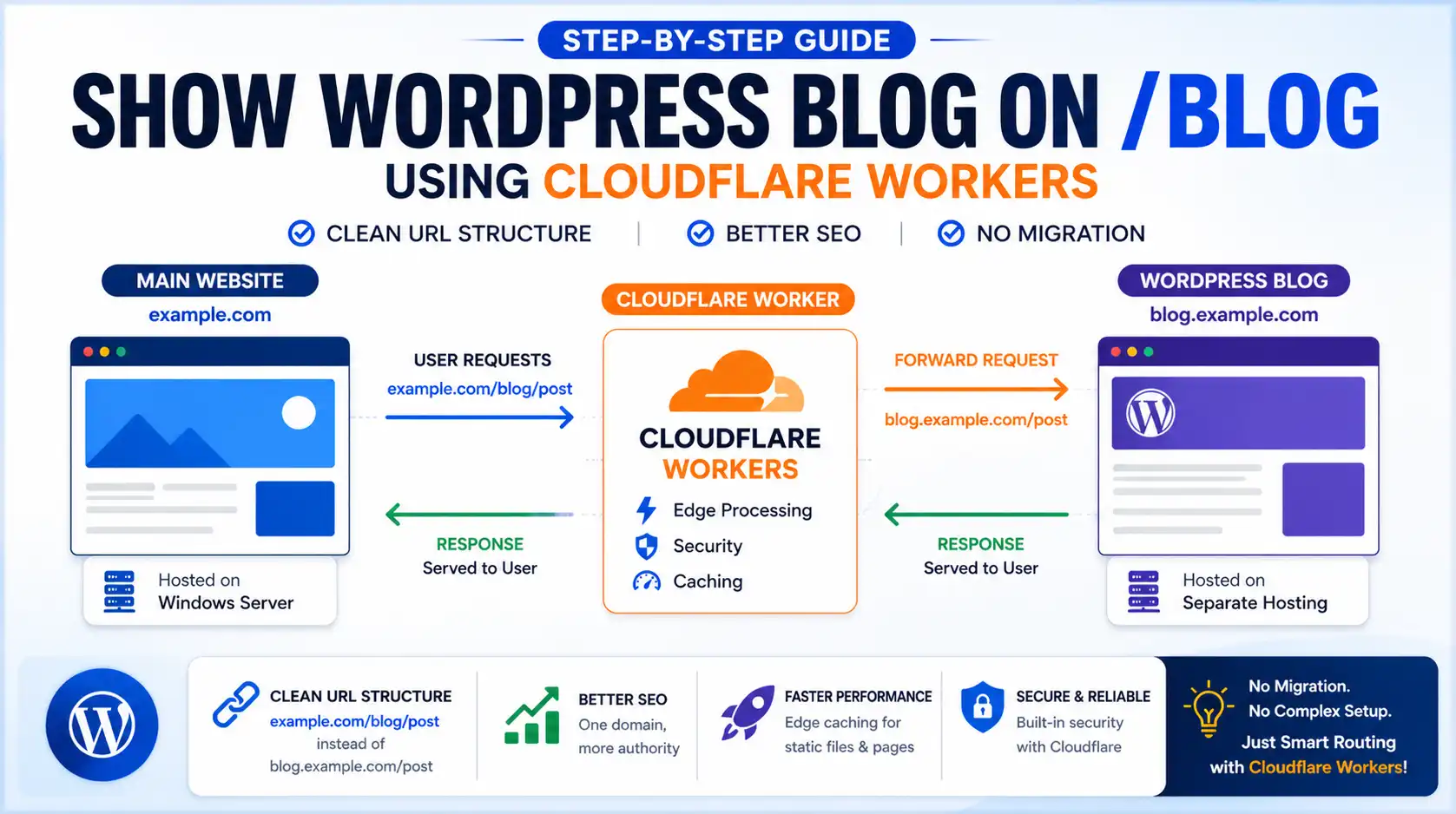
Setting up a WordPress blog while maintaining your main website on a different hosting platform can be challenging, especially when you want the blog to appear as part of your main domain.
In this comprehensive guide, I’ll walk you through how to host your WordPress blog on a subdomain (blog.example.com) while making it accessible via your main domain path (example.com/blog) using Cloudflare Workers.
Without migrating servers?
This guide shows how to achieve that using Cloudflare Workers a powerful edge solution that lets you proxy your blog seamlessly.
Contents
The Problem Statement
Many businesses face this common scenario:
- Main website hosted on Windows Server at
example.com - Want to add a WordPress blog
- Prefer to host the blog on separate, clean hosting
- Want the blog to appear at
example.com/bloginstead ofblog.example.com
Solution Overview
The solution involves using Cloudflare Workers to create a reverse proxy that:
- Redirects
blog.example.comvisitors toexample.com/blog - Serves content from
blog.example.comwhen users visitexample.com/blog - Maintains proper caching for performance
- Handles WordPress authentication correctly
Your Setup Architecture
Let’s understand the structure:
- Main Website →
example.com(Windows Server) - Blog (WordPress) →
blog.example.com(Separate Hosting) - Middleware → Cloudflare Worker
👉 Goal: Show blog at /blog without moving WordPress
Final Result
| URL | Behavior |
|---|---|
blog.example.com/post | 🔁 Redirects |
example.com/blog/post | ✅ Loads blog |
| SEO Canonical | ✅ /blog/... |
Step-by-Step Implementation
Step 1: Set Up Your Subdomain in Cloudflare
First, add your subdomain (blog.example.com) in your Cloudflare DNS settings:
- Go to Cloudflare Dashboard → DNS
- Add CNAME record pointing
blogto your WordPress hosting provider - Enable Cloudflare proxy (orange cloud icon)
| Type | Name | Target | Proxy |
|---|---|---|---|
| A / CNAME | blog | your blog server IP | 🟠 ON |
Step 2: Configure WordPress Settings
In your WordPress installation, modify the wp-config.php file:
define('WP_HOME', 'https://example.com/blog');
define('WP_SITEURL', 'https://blog.example.com');
👉 This combo:
- Fixes canonical URLs
- Keeps backend stable
This tells WordPress where to find itself and where to point links.
Step 3: The REST API Fix
WordPress often struggles to find the REST API when the HOME and SITEURL are different. You need to tell WordPress to use the original blog domain for API requests so the editor can “see” the server.
Add this code to your theme’s functions.php file:
add_filter('rest_url', function($url) {
    $url = str_replace('example.com/blog', 'blog.example.com', $url);
    return $url;
});
This forces the editor to save posts directly to the subdomain where the files actually live, bypassing the Worker’s potential interference during the saving process.
Step 4: Create Cloudflare Worker
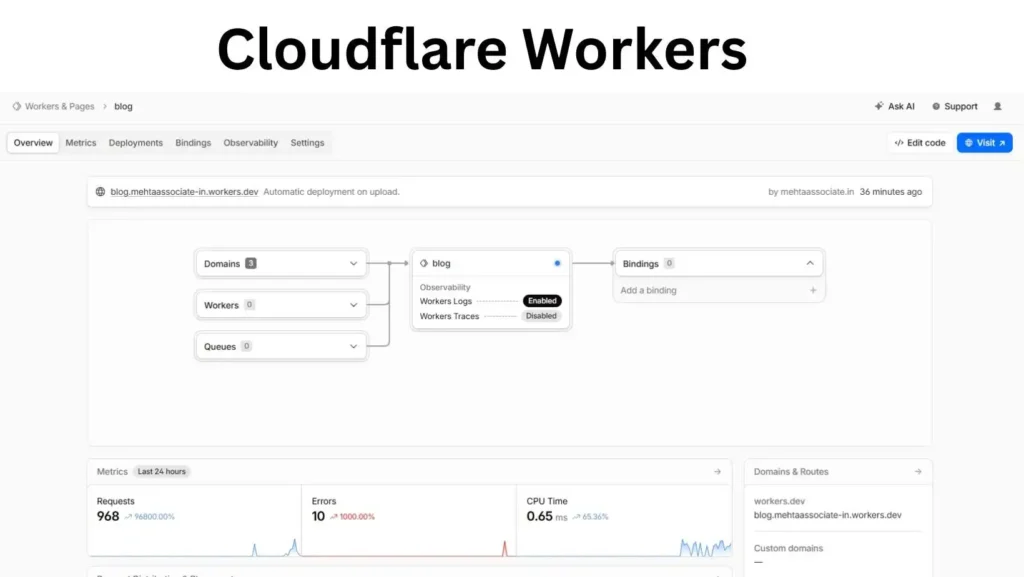
Create a new Cloudflare Worker with the following code:
export default {
  async fetch(request) {
    const url = new URL(request.url);

    const pathname = url.pathname;
    const hostname = url.hostname;

    const isBlogPath = pathname.startsWith("/blog");

    const isCpanelPort = url.port === "2083";

    const isAdminPath =
      pathname.includes("/wp-admin") ||
      pathname.includes("/wp-login.php") ||
      pathname.includes("/wp-json") ||
      pathname.includes("/xmlrpc.php") ||
      pathname.includes("/admin-ajax.php");

    const cookie = request.headers.get("cookie") || "";
    const hasAuthCookie =
      cookie.includes("wordpress_logged_in") ||
      cookie.includes("wordpress_sec") ||
      cookie.includes("wp-settings-");

    // =====================================================
    // 1. FORCE API TO SUBDOMAIN
    // =====================================================
    if (pathname.startsWith("/blog/wp-json")) {
      return Response.redirect(
        "https://blog.example.com/wp-json" +
          pathname.replace("/blog/wp-json", ""),
        302
      );
    }

    // =====================================================
    // 2. FORCE ADMIN TO SUBDOMAIN
    // =====================================================
    if (pathname.startsWith("/blog/wp-admin")) {
      return Response.redirect(
        "https://blog.example.com/wp-admin",
        302
      );
    }

    // =====================================================
    // 3. Redirect subdomain → main domain /blog
    // (except admin & API & Port)
    // =====================================================
    if (hostname === "blog.example.com" && !isAdminPath && !isCpanelPort) {
      return Response.redirect(
        "https://example.com/blog" + pathname,
        301
      );
    }

    // =====================================================
    // Proxy /blog → subdomain
    // =====================================================
    if (isBlogPath) {
      const newUrl = new URL(request.url);
      newUrl.hostname = "blog.example.com";
      newUrl.pathname = newUrl.pathname.replace("/blog", "") || "/";

      // No cache for admin or logged-in users
      if (isAdminPath || hasAuthCookie) {
        return fetch(newUrl, {
          cf: { cacheTtl: 0, cacheEverything: false }
        });
      }

      // Static files (1 day cache)
      const isStatic = /\.(jpg|jpeg|png|gif|webp|svg|css|js|woff|woff2|ttf|ico)$/i.test(newUrl.pathname);

      if (isStatic) {
        return fetch(newUrl, {
          cf: {
            cacheTtl: 86400,
            cacheEverything: true
          }
        });
      }

      // HTML (short cache)
      return fetch(newUrl, {
        cf: {
          cacheTtl: 300,
          cacheEverything: true
        }
      });
    }

    // =====================================================
    // Default
    // =====================================================
    return fetch(request);
  }
};
Your Worker already includes:
- Static files → cached for 24 hours
- Pages → cached for 5 minutes
- Logged-in users → no cache
👉 This reduces server load & improves speed significantly
Step 5: Configure Worker Routes
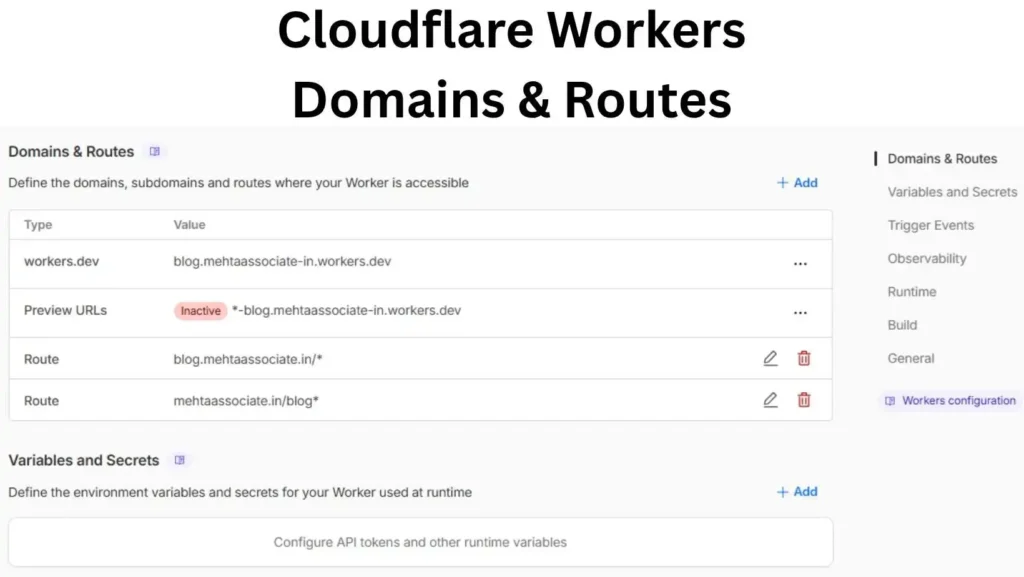
Set up routing in your Cloudflare Worker:
- Route pattern:
blog.example.com/* - Route pattern:
example.com/blog*
👉 This ensures:
/blogis handled- Subdomain redirects properly
This ensures the worker handles both the redirect from subdomain and serving content for the main domain path.
👉 See details docs of Cloudflare Workers: https://developers.cloudflare.com/workers/
How It Works
The Redirect Mechanism
When someone visits blog.example.com/post-name:
- Cloudflare Worker intercepts the request
- Recognizes the hostname as the subdomain
- Redirects to
example.com/blog/post-namewith 301 status
The Proxy Mechanism
When someone visits example.com/blog/post-name:
- Cloudflare Worker intercepts the request
- Recognizes the
/blogpath prefix - Rewrites the URL internally to
blog.example.com/post-name - Fetches content from the WordPress installation
- Returns the content while maintaining the
example.com/blogURL
Intelligent Caching Strategy
The worker implements smart caching:
- Static Files: Cached for 1 day (images, CSS, JS)
- Dynamic Content: Cached for 5 minutes (HTML pages)
- Authenticated Users: No caching to ensure fresh content
Benefits of This Approach
Performance Advantages
- Leverages Cloudflare’s global CDN
- Intelligent caching reduces server load
- Faster load times for visitors
- Reduced bandwidth usage
SEO Benefits
- Content appears under main domain (
example.com/blog) - Maintains consistent branding
- Better domain authority consolidation
- Proper canonical URLs
Technical Benefits
- Separation of concerns between main site and blog
- Independent hosting and scaling
- Easier maintenance and updates
- Flexible architecture
Troubleshooting Common Issues
Mixed Content Warnings
Ensure your WordPress site loads all resources via HTTPS:
- Update WordPress Address and Site Address in Admin Settings
- Use plugins like “Really Simple SSL”
- Check theme and plugin code for hardcoded HTTP URLs
Broken Links and Assets
Verify these WordPress settings:
- Permalinks flush after configuration changes
- Media library URLs update correctly
- Plugin-generated content uses relative paths
Authentication Issues
WordPress admin area should work normally because:
- Direct access to
blog.example.com/wp-adminbypasses worker - Authenticated sessions bypass caching
- Cookies are properly forwarded
Advanced Configuration Options
Custom Domain Handling
For multiple domains or complex setups:
const domains = {
  'example.com': 'blog.example.com',
  'example.in': 'blog.example.in'
};

if (url.pathname.startsWith("/blog")) {
  const targetDomain = domains[url.hostname] || 'blog.example.com';
  // ... rest of logic
}
Additional Security Headers
Add security headers for enhanced protection:
const response = await fetch(newUrl, cacheOptions);
const newResponse = new Response(response.body, response);
newResponse.headers.set('X-Frame-Options', 'SAMEORIGIN');
newResponse.headers.set('X-Content-Type-Options', 'nosniff');
return newResponse;
Analytics Integration
Track blog traffic separately:
// Add to worker for analytics
if (url.pathname.startsWith("/blog")) {
  // Send analytics event
  // Log to your preferred analytics service
}
Cost Considerations
Cloudflare Pricing
- Free Tier: Usually sufficient for small blogs
- Pro ($20/month): Better performance and analytics
- Business ($200/month): Enterprise features and support
Hosting Costs
- Separate WordPress hosting (typically $5-50/month)
- Potential savings from optimized resource usage
- Scalability without affecting main website
Performance Monitoring
Monitor these key metrics:
- Page load times via Cloudflare Analytics
- Cache hit ratios
- Error rates and response codes
- Bandwidth usage reduction
Alternative Approaches
WordPress Multisite
Pros: Single installation, unified management
Cons: Complex migration, shared resources
Reverse Proxy with Nginx/Apache
Pros: Full control, no third-party dependency
Cons: Requires server access and configuration
Subdirectory Installation
Pros: Simplest approach
Cons: Same hosting constraints, harder migration
Conclusion
This Cloudflare Worker solution provides an elegant way to host your WordPress blog separately while maintaining the appearance of integration with your main website. The approach offers excellent performance, proper caching, and maintains SEO benefits.
Key takeaways:
- Flexibility: Host blog independently while maintaining brand consistency
- Performance: Leverage Cloudflare’s global network and intelligent caching
- Scalability: Scale blog hosting independently from main website
- SEO Friendly: Proper URL structure and redirects
Implementing this solution requires careful attention to WordPress configuration and Cloudflare settings, but the end result provides a professional, high-performing blog experience that seamlessly integrates with your main website.
Whether you’re running a law firm like example.com or any other business, this approach gives you the best of both worlds independent hosting flexibility with integrated user experience.
Read in App ★ Free