 Skip to content
Do you have an old or unused laptop and want to use it as a second monitor? If yes, this guide will show you how to use a laptop as a monitor easily, without buying a new display.
Using a laptop as a second screen is a smart productivity hack. It expands your workspace, improves multitasking, and saves money. Whether you’re working, coding, trading, or studying, a dual-screen setup can significantly boost efficiency.
Can You Use a Laptop as a Monitor Using HDMI?
Many people think connecting an HDMI cable from a PC to a laptop will work—but it doesn’t.
Here’s why:
- Laptop HDMI, VGA, or DisplayPort ports are output-only
- They are designed to send display, not receive it
- You can connect a laptop to a TV or monitor
- But you cannot directly use a laptop as a monitor via HDMI
Don’t worry—there are better and free solutions available.
Also Read: How to Speed Up Windows 10: Top Tips and Tricks
Method 1: Use Laptop as Monitor with Windows Built-in Feature
Windows 10 and Windows 11 include a feature called Projecting to This PC, which allows you to use your laptop as a wireless display.
This is the best and safest method, as it doesn’t require extra software.
Step 1: Set Up the Laptop (Second Screen)
On the laptop you want to use as a monitor:
- Open Settings
- Go to System
- Click Projecting to this PC
- Change the settings:
- This PC can be discovered for projection → Available everywhere
- Ask for PIN for pairing → Optional (recommended)
- Keep this screen open
Your laptop is now ready to work as a monitor.
Step 2: Connect From Your Main PC
On your main PC or desktop:
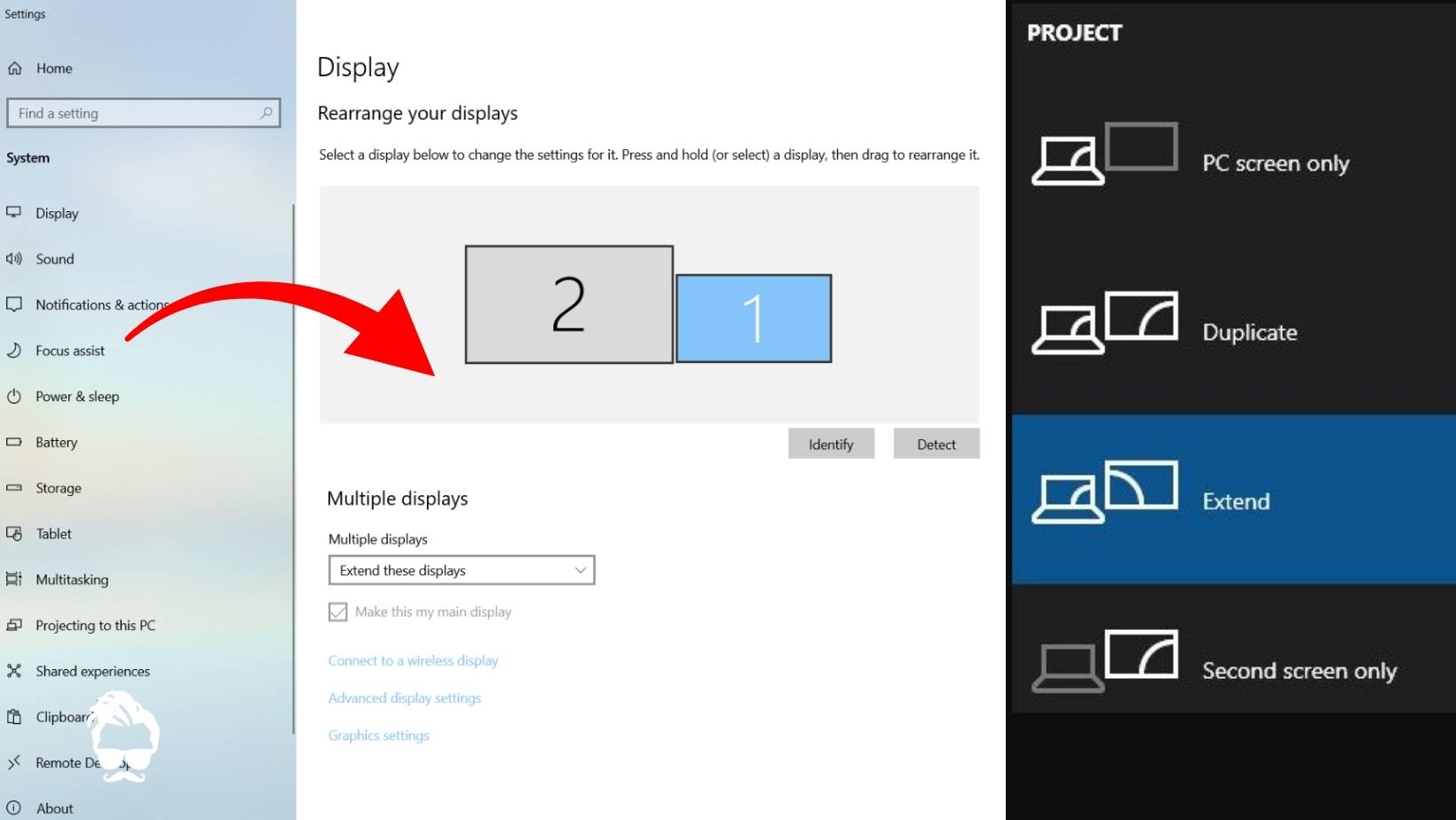
- Press Windows + P
- Select Extend or Duplicate
- Click Connect to a wireless display
- Choose your laptop from the list
- Accept the connection on the laptop
After a few seconds, your laptop screen will start displaying your PC content.
Adjust Display Settings (Recommended)
After connecting:
- Go to Settings → Display
- Arrange screens as per your desk setup
- Change resolution if needed
- Enable mouse & keyboard input on the laptop screen
Also Read: The Ultimate Guide to Windows Keyboard Shortcuts
Method 2: Use Third-Party Software (Optional)
If wireless display doesn’t work smoothly, you can use trusted third-party tools:
Popular Apps
- SpaceDesk (Free, best option)
- Duet Display
- Deskreen
These apps allow:
- Wired or wireless connection
- Better performance on slower Wi-Fi
- Support for older Windows versions
Things to Keep in Mind
- Both devices must be on the same Wi-Fi network
- Wireless display performance depends on network speed
- Older PCs may not support Miracast
- For best results, keep devices plugged in
Benefits of Using Laptop as a Second Monitor
- No need to buy a new monitor
- Increases productivity
- Better multitasking
- Ideal for work-from-home setup
- Perfect for students, traders, designers, developers
Conclusion
If you want to increase your screen space without spending money, using a laptop as a monitor is the perfect solution.
With Windows’ built-in wireless display feature or free software tools, you can easily turn your laptop into a second screen and improve your workflow instantly.
Frequently Asked Questions (FAQ)
Can I use a laptop as a monitor without software?
Yes, Windows 10 and 11 provide a built-in wireless display feature.
Does HDMI work to use laptop as a monitor?
No, laptop HDMI ports are output-only.
Is internet required?
No internet needed, but both devices must be on the same Wi-Fi network.
Which is the best free software?
SpaceDesk is the most reliable free option.
Read in App ★ Free